How to load data using FRIᴾᴿᴼ web application
There are multiple ways to upload roster data to FRIᴾᴿᴼ model. You can either setup Apps, use FRIᴾᴿᴼ web application, or call the FRIᴾᴿᴼ APIs to load data into FRIᴾᴿᴼ.
In this guide we will focus on loading roster files in FRIᴾᴿᴼ format into FRIᴾᴿᴼ using the FRIᴾᴿᴼ web application. For this approach, you can choose between two methods - individual entry and bulk upload. This guide will walk you through both those methods in detail.
Individual entry
Individual entry is one of the easiest way to submit data to FRIᴾᴿᴼ analysis. The step-by-step wizard will allow you to enter the roster data, limiting errors during data input. To manually submit individual roster entry into FRIᴾᴿᴼ, follow the steps below:
- Navigate to the Rosters screen using the menu panel.

- Click + Create roster
- Click Construct manually

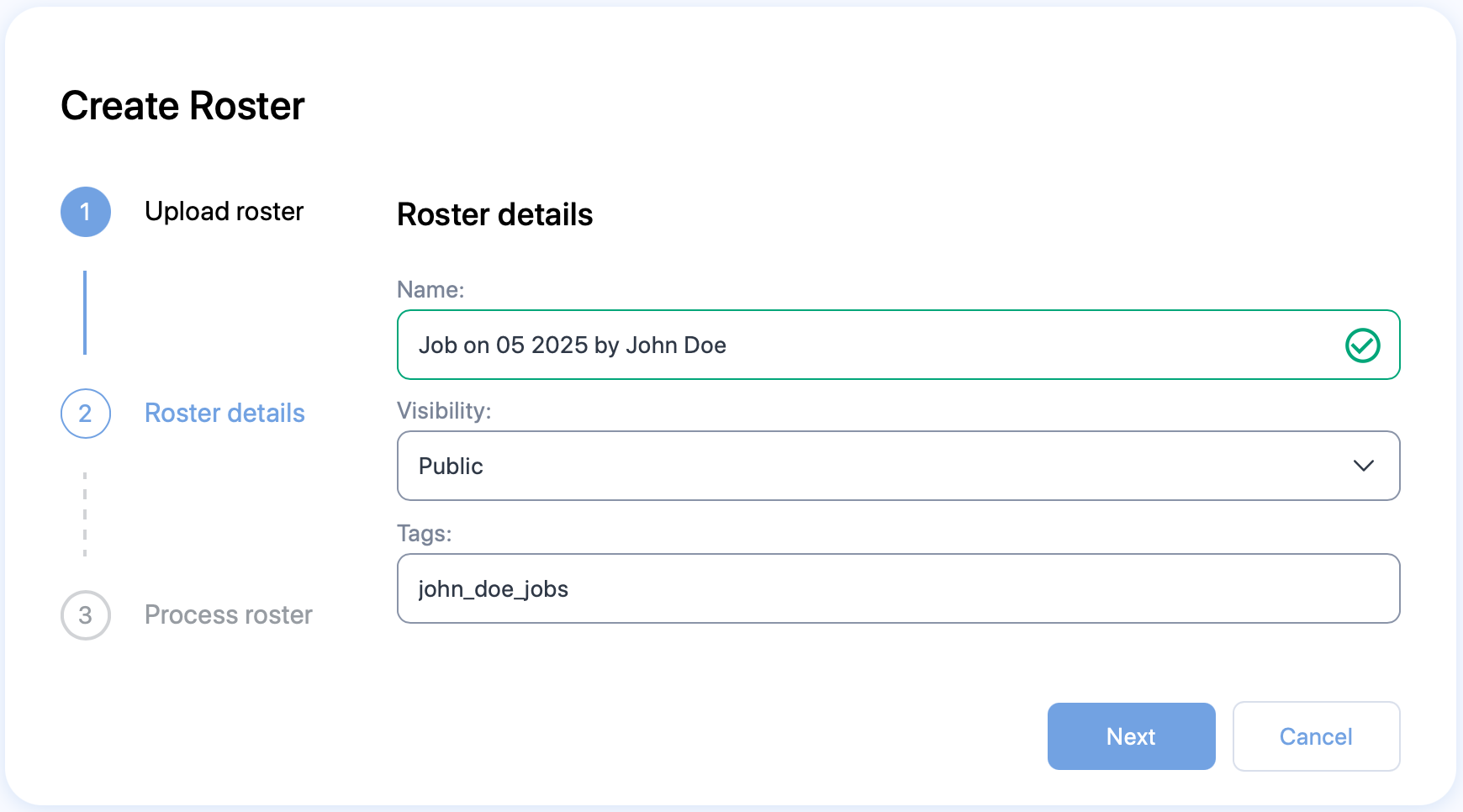
- The Create Roster form will appear. Enter relevant values in the available fields. Refer to the Tables of properties section below for more information.
- Click Next
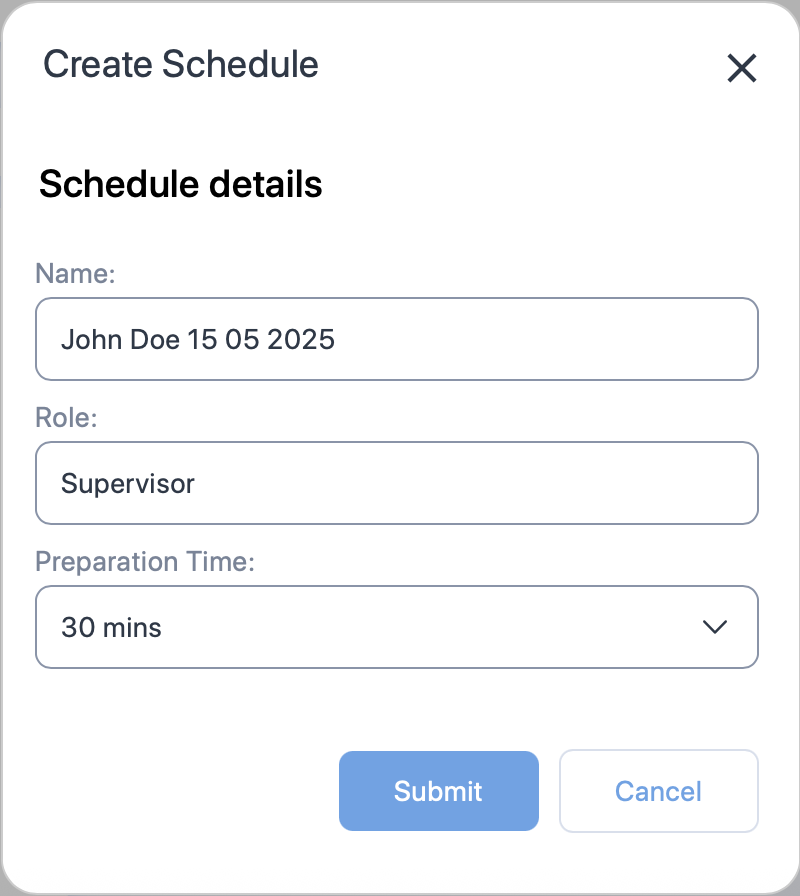
- The Create Schedule form will appear. Enter relevant values in the available fields. Refer to the Tables of properties section below for more information.
- Click Submit.
- The Create Duty form will appear. Enter relevant values in the available fields. Refer to the Tables of properties section below for more information.
- Click Create
- The Fatigue chart will start showing the analysis immediately.

To add more duties to a schedule, right click on area of the fatigue chart where you want to add the duty and select Create Duty. Repeat Step 8 to create duty.
To add additional schedules for more personnel, click + Create Schedule located above the chart. - Right click on the duty and select Activities to start adding activities to the duty.

- The Activities pop-up form will appear. Click on the + icon.

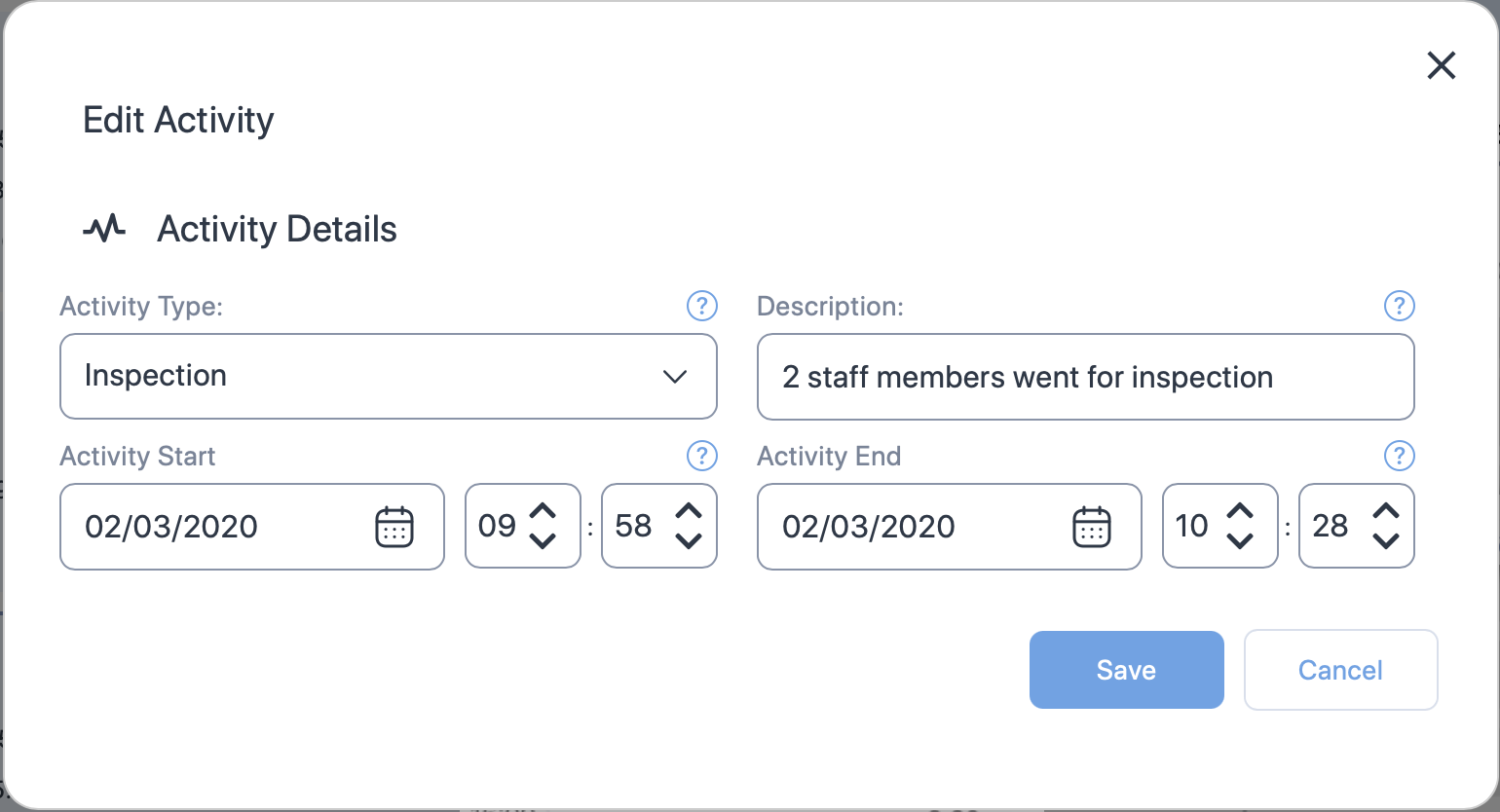
- The Create Activity form will appear. Enter relevant values in the available fields. Refer to the Tables of properties section below for more information.
- Click Create and close the Activities pop-up. The Fatigue chart will update. Continue adding more activities and duty to refine the results.
Bulk upload
Example CSV or Microsoft Excel (.xlsx) files
Download the example files for Duty (csv and .xlsx) and Activities (csv and .xlsx) here.
Alternatively, you can view the order and column names of the files in the Duty file specification and the Activity file specification sections. You can also see Where to get file formats document to learn about additional places you get the file formats from.
Bulk entry is one of the fastest way to submit data to FRIᴾᴿᴼ using the web UI. Using the CSV or Microsoft Excel file, you can submit multiple schedules data at once, reducing the time taken to enter the data manually. To submit bulk roster entries into FRIᴾᴿᴼ web UI, follow the steps below:
-
Navigate to the Rosters screen using the menu panel.
-
Click + Create roster
- Click Construct with duties only

- The file explorer opens. Navigate to the location of the CSV or Microsoft Excel (.xlsx) file that has roster data with duties and select it.
- The Create Roster form will appear. Enter relevant values in the available fields. Refer to the Tables of properties section below for more information.
- Click Next
- The roster data will start processing.
- If any errors or warnings are found on the file, they will be listed at the bottom of the Process roster screen. You will also receive an email notification with the list of errors you need to resolve.


- Resolve the errors and warnings and upload again or view the schedules to fix the errors using the web UI.
- If any errors or warnings are found on the file, they will be listed at the bottom of the Process roster screen. You will also receive an email notification with the list of errors you need to resolve.
- After the processing is complete, a fly-out banner will appear on the top right of the screen. You will also receive an email notification to indicate successful completion. Click
- View roster summary to view roster summary
- View schedules to view the schedules and fatigue charts
-
Navigate to the Rosters screen using the menu panel.
-
Click + Create roster
- Click Construct with duties and activities

- The file explorer opens. Navigate to the location of the CSV or Microsoft Excel (.xlsx) file that has roster data with duties and select it.
- The Activity upload dialog appears. Click Ok to continue.
- The file explorer opens. Navigate to the location of the CSV or Microsoft Excel (.xlsx) file that has roster data with activites and select it.
- The Create Roster form will appear. Enter relevant values in the available fields. Refer to the Tables of properties section below for more information.
- Click Next
- The roster data will start processing.
- If any errors or warnings are found on the file, they will be listed at the bottom of the Process roster screen. You will also receive an email notification with the list of errors you need to resolve.
- Resolve the errors and warnings and upload again or view the schedules to fix the errors using the web UI.
- If any errors or warnings are found on the file, they will be listed at the bottom of the Process roster screen. You will also receive an email notification with the list of errors you need to resolve.
- After the processing is complete, a fly-out banner will appear on the top right of the screen. You will also receive an email notification to indicate successful completion. Click
- View roster summary to view roster summary
- View schedules to view the schedules and fatigue charts
Tables of properties
Roster properties
| Property (* required) |
Description |
|---|---|
| Name* | The name of the schedule. Usually the identifier of the pilot or the crew member e.g., employee number |
| Visibility | If other users should not be able to see the roster, choose Private else choose Public |
| Tags | The label attached to the Roster which can be used to group rosters together. |
Schedule properties
| Property (* required) |
Description |
|---|---|
| Name* | The name of the schedule. Usually the name of the staff. |
| Role | A label for indicating the role of the staff. |
| Preparation time* | The time required to prepare after waking from a main sleep. |
Duty properties
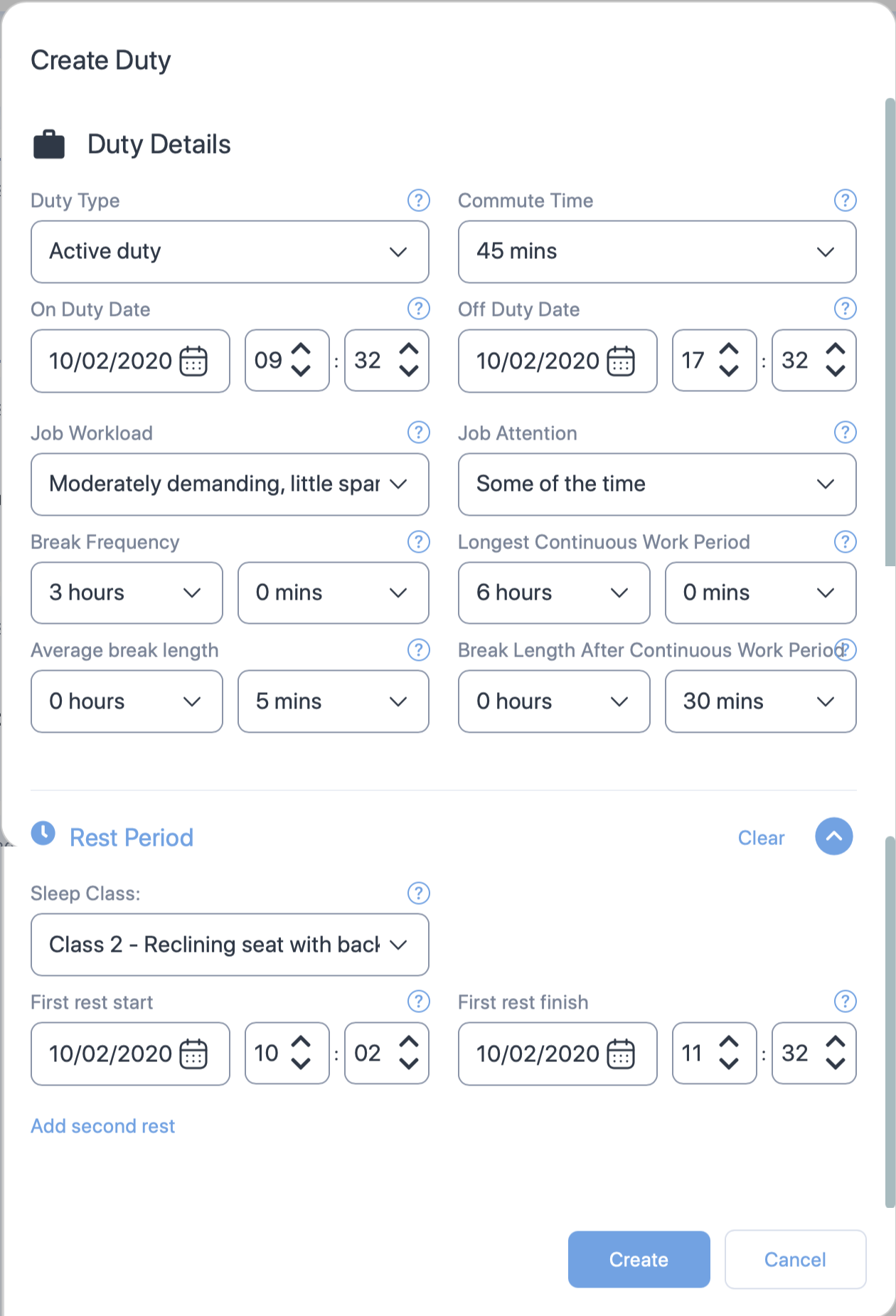
Cabin crew properties
Some of the properties shown below are exclusive to Active duty i.e., the Create Duty form will not show some of the following properties for "On call" duty. Such properties will have the () symbol next to the property name.
| Section | Property (* required) |
Description |
|---|---|---|
| General | Duty type* | Choose the type of duty from the dropdown. |
| Commute Time | Select the time taken to commute to the duty. Default value is 1 hour. | |
| On duty date and time* | The duty start date. Use the date time controls to set the date and time. | |
| Off duty date and time* | The duty end date. Use the date time controls to set the date and time. | |
| Job Workload | Select one of the following job workload types for the staff.
See Job Workload to learn more. |
|
| Job Attention | Select one of the following job attention types for the staff.
See Job Attention to learn more. |
|
| Break Frequency Hours and Minutes* | The frequency of the rest/break provided to or taken by the staff. Set how often staff take breaks using the dropdown controls for hours and minutes. You can adjust the frequency in 15-minute intervals. | |
| Longest Continuous Work Period* | The longest period the staff worked before taking a break. Set the longest continuous time the staff worked using the dropdown controls for hours and minutes. You can adjust this period in 15-minute intervals. | |
| Average Break Length* | The average length of typical breaks provided to or taken by staff. Set the average break duration for the staff using the dropdown controls for hours and minutes. You can adjust the length in 5-minute intervals. | |
| Break Length after Continuous Work Period* | The average length of typical breaks provided to or taken by staff after the longest continuous work period. Set this length using the dropdown controls for hours and minutes. You can adjust the frequency in 5-minute intervals. | |
| Rest Period () | Sleep Class | The class where the cabin crew slept. Select:
|
| First Rest Start | The date and time the staff started their first rest. Set the rest period for the staff using the dropdown controls for date and time. See Rest Period for more information on rest period. | |
| First Rest Finish | The date and time the staff ended their first rest. Set the rest period for the staff using the dropdown controls for date and time. See Rest Period for more information on rest period. | |
| Add second rest | Click on this link if you want to add second rest date and times. A click on this link will produce additional properties for second rest. These properties and their selections are very similar to the first rest. See above for details. |
Activity properties
| Property (* required) |
Description |
|---|---|
| Activity type* | Choose the type of activity from the dropdown. Click here to see the available types. |
| Description | Add a short description about or comment on the activity. You can also add the number of staff members who performed the activity. |
| Activity start date and time* | The activity start date. Use the date time controls to set the date and time. |
| Activity end date and time* | The activity end date. Use the date time controls to set the date and time. |
Duty file specification
The table below shows a list of columns you can include in the CSV or Microsoft Excel file. The columns must be in the same order as listed below.
You can omit the column titles. In such case, the order in which the column titles are listed below will be assumed. You can send multiple rows at a time.
Date format
We have set the date format to DD/MM/YYYY below. This can be changed to MM/DD/YYYY from the Settings page.
| ColumnName (+ required) |
Format | Description |
|---|---|---|
| Reference+ | Text | A free-text property usually used to indicate a staff. Use staff's name or ID. |
| OnDutyDate+ | Date (DD/MM/YYYY) | The duty start date. |
| OnDutyTime+ | Time (hh:mm) | The duty start time. |
| OffDutyDate+ | Date (DD/MM/YYYY) | The duty end date. |
| OffDutyTime+ | Time (hh:mm) | The duty end time. |
| SleepClass | Number (1-5) | Send
|
| FirstRestStartDate | Date (DD/MM/YYYY) | The date on which the pilot or the crew member started their first rest. |
| FirstRestStartTime | Time (hh:mm) | The time at which the pilot or the crew member started their first rest. |
| FirstRestEndDate | Date (DD/MM/YYYY) | The date on which the pilot or the crew member ended their first rest. |
| FirstRestEndTime | Time (hh:mm) | The time at which the pilot or the crew member ended their first rest. |
| SecondRestStartDate | Date (DD/MM/YYYY) | The date on which the pilot or the crew member started their second rest. |
| SecondRestStartTime | Time (hh:mm) | The time at which the pilot or the crew member started their second rest. |
| SecondRestEndDate | Date (DD/MM/YYYY) | The date on which the pilot or the crew member ended their second rest. |
| SecondRestEndTime | Time (hh:mm) | The time at which the pilot or the crew member ended their second rest. | JobWorkload | Number (1-2) | See Job workload and job attention to learn more. The default value is 2. Send one of the following job workload types for the staff.
|
| JobAttention | Number | See Job workload and job attention to learn more. The default value is 1. Send one of the following.
|
BreakFrequency (in minutes) |
Number | The frequency at which the rest/break is provided to or taken by the staff. Send the duration between last break taken by the staff. The default value is 180. |
| BreakAverageLength (in minutes) |
Number | The average length of typical breaks provided to or taken by staff. The default value is 5. |
| LongestWorkPeriod (in minutes) |
Number | The longest continuous period the staff worked before taking a break. The default value is 360. |
| BreakLengthAfterLongestWorkPeriod (in minutes) |
Number | The average length of typical breaks provided to or taken by staff after the longest continuous work period. The default value is 30. |
| DutyType | Number (1-3) | The type of duty. The default value is 1. Send
|
| Commute (in minutes) |
Number | The time taken to commute to the duty. Default value is 60. |
| PrepTime (in minutes) |
Number | The time taken for staff to prepare. Default value is 60. |
Activity file specification
The table below shows a list of columns you can include in the CSV or Microsoft Excel file. The columns must be in the same order as listed below.
You can omit the column titles. In such case, the order in which the column titles are listed below will be assumed.
Matching date times
Start and end times for activites should be within the start and end times for the duty.
| ColumnName (+ required) |
Format | Description |
|---|---|---|
| Reference+ | Text | A free-text field usually used to indicate a Activity. Use staff's name or ID. Ensure that the name of the staff matches the names in the duty file. |
| ActivityStartDate+ | Date (DD/MM/YYYY) | The activity start date. |
| ActivityStartTime+ | Time (hh:mm) | The activity start time. |
| ActivityEndDate+ | Date (DD/MM/YYYY) | The activity end date. |
| ActivityEndTime+ | Time (hh:mm) | The activity end time. |
| ActivityType+ | Text | Send one of the following
|
| Description | Text | A free text field to explain the activity. |