How to work with duty
Scope of this guide
This guide is focused on working with duties using the FRIᴾᴿᴼ web application. If you want to learn about API interactions see FRMSc API documentation or Apps.
You can create a new duty using the Create Duty form. You can access this form from the Schedules screen after you have created a schedule. You can also access it from the fatigue chart of the schedule. The control bar for duties in the fatigue chart, however, allows you to do more than just create a duty.
In this guide, we will learn how to manage duties using the web application.
Add a duty
There are two ways to add duty to a schedule. See below for instructions on both.
First duty in a schedule
The workflow
Creating duty is only a step in a larger workflow. The steps below isolate creating duty from that workflow. The following steps demonstrate duty creation process for users returning to create a duty in a roster.
To learn how to create a new duty as part of the entire workflow, see the Individual entry method in the How to load data into FRIᴾᴿᴼ guide.
Adding duty to an blank schedule?
If you are returning to add first duty to a schedule, simply click on the schedule's card and follow the steps below.
- Create a schedule.
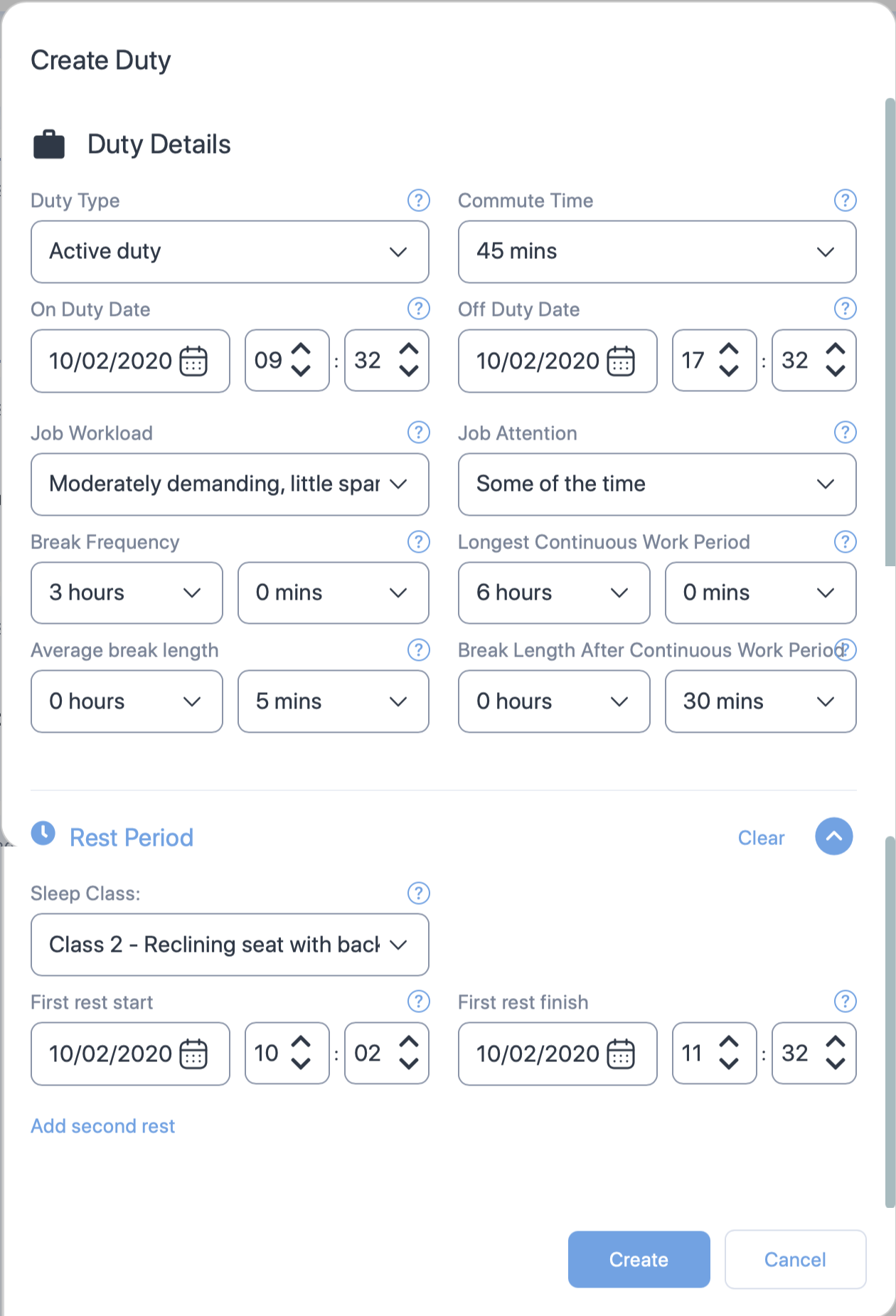
- The Create Duty form will appear. Enter the values in the properties. See Duty properties for more information on each property.
- Click Create. The schedule analysis screen and the schedule card will refresh and update. You can also continue further by adding activities and sleep period to the duty.
Additional duties
To add additional duties to a schedule:
- Right click on a blank area of the fatigue chart and select Create Duty. A blank area is any region in the chart with the lightest shade of grey.

- The Create Duty form will appear. Enter the values in the properties. See Duty properties for more information on each property.
- Click Create. The schedule analysis screen and the schedule card will will refresh and update. You can also continue further by adding activities and sleep period to the duty.
Edit a duty
See duty control bar.
How to edit duty?
Manage sleep period
You can easily identify a sleep period in the fatigue-chart. A sleep period is any region in the chart with the darkest shade of grey or the brightest shade of blue.
The darkest shade of grey indicates the sleep period calculated by the models. The models' automatic calculation is based on the sleep assumptions set up by the administrators. See the following video to learn how to add model-generated sleep.
How to add model-defined sleep to a duty?
Users can also define sleep periods for duties. Such sleep periods appear in the brightest shade of blue to indicate the sleep is user-defined.
Add user-defined sleep period
How to add user-defined sleep to a duty?
To add user-defined sleep period:
- Right-click a duty and select Create Sleep.
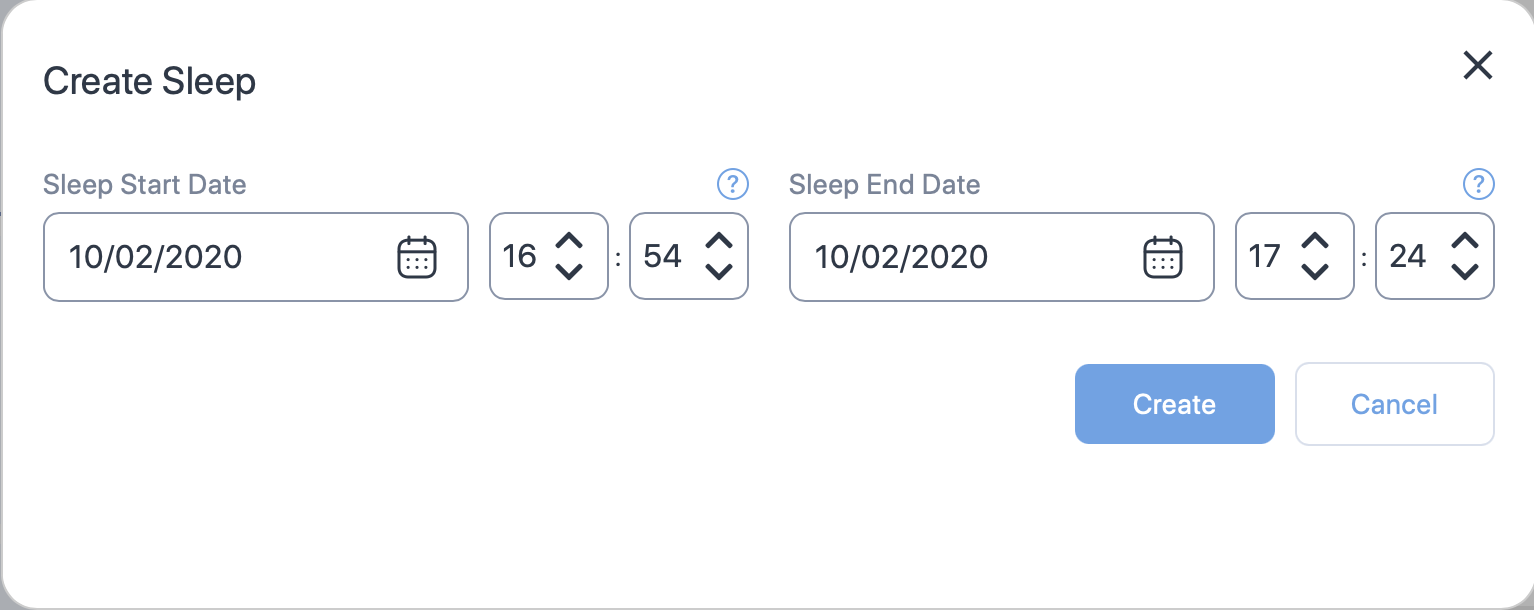
- The Create Sleep form appears. Enter appropriate values to the properties in this form. See Sleep properties for more information.
-
Click Create. The fatigue chart reloads and sleep is added to the duty. For ease of visualisation, the region where user-defined sleep is added will be coloured blue.
Colour as safeguard and visualisation
The colours were added to the chart for more than just ease of visualisation—they serve to alert a supervisor (mainly the regulator) that someone has changed the sleep settings. It is possible to decrease fatigue simply by increasing any sleep period prior to the fatiguing duty. To prevent unscrupulous behaviour, the colour of any sleep period that has been changed, added, or removed is altered, so the governing supervisor can see immediately that someone has been interfering with the estimated sleep periods. They should ask the person responsible what changes were made and request documentation showing that the calculations of sleep were not optimal.
Edit sleep period
How to edit sleep?
To edit a sleep period:
- Right-click the sleep period and select Edit Sleep.
- The Edit Sleep form appears. Enter appropriate values to the properties in this form. See Sleep properties for more information.
- Click Save to keep the changes made to the sleep. The fatigue chart reloads, showing the changes.
Delete sleep period
To delete a sleep period:
- Right-click the sleep period and select Delete Sleep. A sleep period is any region in the chart with the darkest shade of grey.
- A confirmation box appears, asking you to confirm your action. Click Delete to continue deleting the sleep period.
- The fatigue chart reloads and the sleep period is removed from the duty. However, an outline (the same shade of colour, which it originally was in) appears over the removed sleep period.

If you right-click over the outline, you will see the Restore Sleep icon. Click on the icon to restore the deleted sleep period.
Copy and paste duty
Limitations
- You can paste a duty once. After you click paste, the icon disappears from the control bar on the next right-click.
- You can't paste a duty over an existing duty. Such action shows an error and the Paste Duty icon disappears.
The Copy Duty icon lets you copy the information in a duty to the clipboard. You can then paste that information in a blank area within the fatigue chart. See below for step-by-step instructions.
- Right-click a duty and select Copy Duty.
- Move your cursor over to a blank area in the fatigue chart.
- Right-click over the blank area and select Paste Duty. The schedule analysis screen will reload and the duty information will appear over the blank area.

Delete a duty
See duty control bar.
Access the duty control bar
The schedule control bar appears when you right-click on the fatigue chart over a duty entry. This control bar also features a rich set of icons that control various functionalities related to the duty.

-
The Edit icon lets you edit the duty properties. Click on this icon to open the Edit Duty form. See Duty properties for a list of properties that you can edit. After you have made your changes, click Save at the bottom of the form to keep your changes.
How to edit duty?
-
The View Summary icon lets you see the key statistical analysis of the duty. If you click on this icon, a pop-up screen will open showing the key statistics. See below for an image of the pop-up along with the description of each label (alphabetical).

- The fatigue/risk score at the start of the duty
- The fatigue/risk score at the end of the duty
- The Max SP score of the duty
- The risk score of the duty
-
The Activities icon lets you view the Activities form. You can use this form to add or remove any activity from the duty. See How to work with activities for more information.
- The Create Sleep icon lets you view the Create Sleep form and add a user-defined sleep period to a duty. See Add sleep to learn more.
-
The Copy Duty icon lets you copy the information in this duty to the clipboard. See Copy and paste duty to learn more.
How to copy duty?
-
The Delete Duty icon lets you remove the duty from the schedule and the fatigue chart. If you click on this icon, you will be prompted to confirm your action. If you confirm the delete action, the duty will be deleted from your instance and the fatigue chart will reload.
Table of properties
Duty properties
Cabin crew properties
Some of the properties shown below are exclusive to Active duty i.e., the Create Duty form will not show some of the following properties for "On call" duty. Such properties will have the () symbol next to the property name.
| Section | Property (* required) |
Description |
|---|---|---|
| General | Duty type* | Choose the type of duty from the dropdown. |
| Commute Time | Select the time taken to commute to the duty. Default value is 1 hour. | |
| On duty date and time* | The duty start date. Use the date time controls to set the date and time. | |
| Off duty date and time* | The duty end date. Use the date time controls to set the date and time. | |
| Job Workload | Select one of the following job workload types for the staff.
See Job Workload to learn more. |
|
| Job Attention | Select one of the following job attention types for the staff.
See Job Attention to learn more. |
|
| Break Frequency Hours and Minutes* | The frequency of the rest/break provided to or taken by the staff. Set how often staff take breaks using the dropdown controls for hours and minutes. You can adjust the frequency in 15-minute intervals. | |
| Longest Continuous Work Period* | The longest period the staff worked before taking a break. Set the longest continuous time the staff worked using the dropdown controls for hours and minutes. You can adjust this period in 15-minute intervals. | |
| Average Break Length* | The average length of typical breaks provided to or taken by staff. Set the average break duration for the staff using the dropdown controls for hours and minutes. You can adjust the length in 5-minute intervals. | |
| Break Length after Continuous Work Period* | The average length of typical breaks provided to or taken by staff after the longest continuous work period. Set this length using the dropdown controls for hours and minutes. You can adjust the frequency in 5-minute intervals. | |
| Rest Period () | Sleep Class | The class where the cabin crew slept. Select:
|
| First Rest Start | The date and time the staff started their first rest. Set the rest period for the staff using the dropdown controls for date and time. See Rest Period for more information on rest period. | |
| First Rest Finish | The date and time the staff ended their first rest. Set the rest period for the staff using the dropdown controls for date and time. See Rest Period for more information on rest period. | |
| Add second rest | Click on this link if you want to add second rest date and times. A click on this link will produce additional properties for second rest. These properties and their selections are very similar to the first rest. See above for details. |
Sleep properties
| Property | Description |
|---|---|
| Sleep Start Date Time | The date and time the staff started their sleep opportunity. |
| Sleep End Date Time | The date and time the staff ended their sleep opportunity. |